Temporary Email Not Receiving a Verification Code? A Troubleshooting Checklist
By OTPINB Team · Published 2026-11-03 · Reviewed 2026-11-03
If a verification code has not appeared, first check whether the email itself arrived. A missing message and an unrecognized code are different problems. Confirm the exact address, check whether the sending website accepted it, then read the latest message before requesting another code.
OTP Inbox cannot guarantee that another website will accept a temporary email address or deliver a message. Use a permanent, private email for important accounts and account recovery.
Check the exact address and domain
Copy the full address from the mailbox you created. Check the part before the @ sign and the selected domain. An extra character, a different domain or an address from a previous session can send the message somewhere you are not watching.
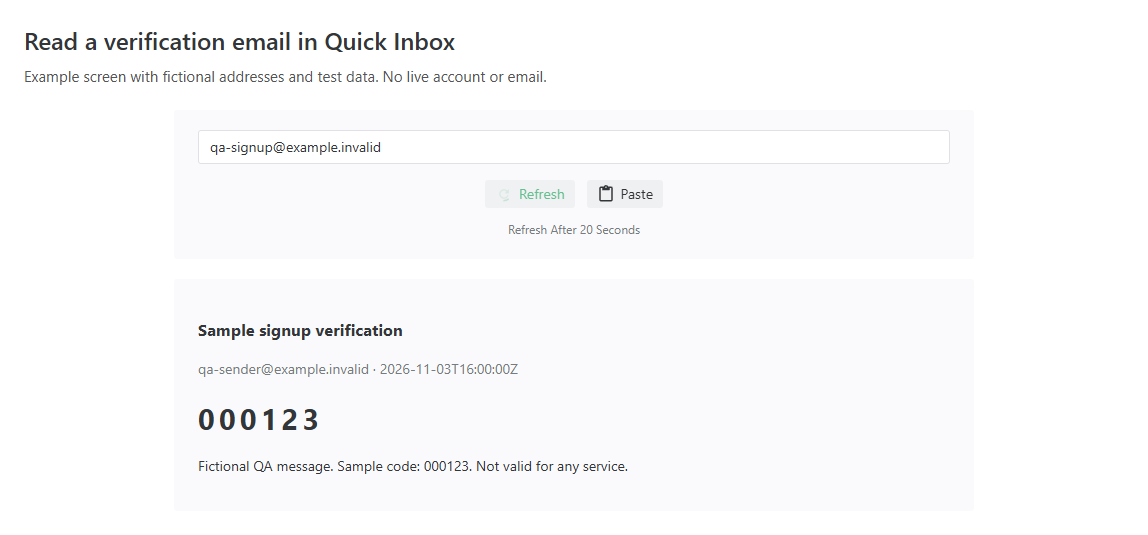
If you are using Quick Inbox, enter the full address of the mailbox you intend to read. Typing an address into a lookup field does not prove that a mailbox was created successfully.
For a test you control, compare the address in your application's outgoing email log with the address displayed in OTP Inbox. Keep logs private. You do not need to share an OTP, access token or complete email header with support to explain that an address was mistyped.
Check whether the sender accepted the address
Some websites reject temporary domains during signup. Others accept the form but decide not to send a verification message. A successful button click is not proof of delivery.
Look for an error or delivery notice on the sending website. If you own that application, check its email provider's message status and the recipient address. If you do not control the sender, use its supported contact or recovery process.
Changing domains does not guarantee acceptance. Do not use temporary mail to evade a service's account restrictions. If a service requires a lasting address, use one you can keep accessing.
Separate message arrival from code extraction
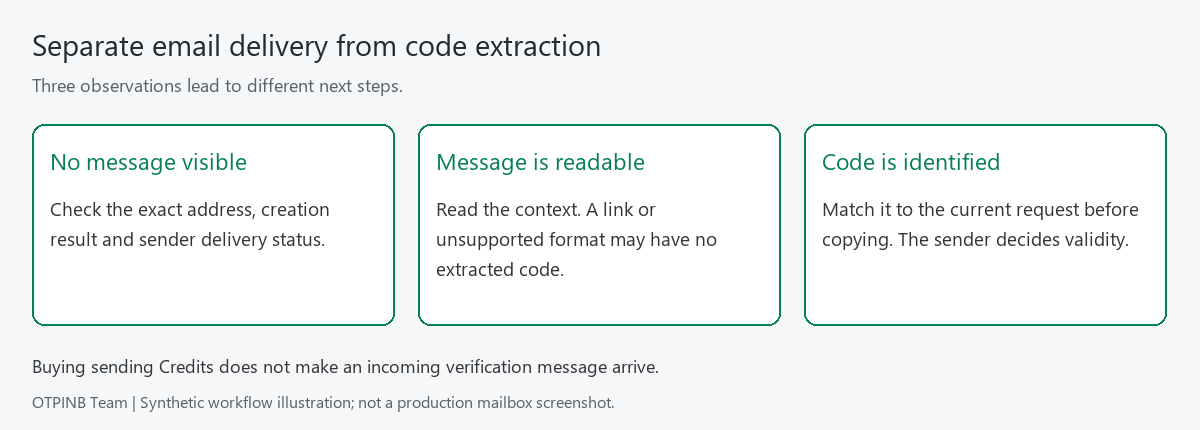
When a message is visible, open it and read the text. OTP Inbox can recognize supported verification-code formats, but a sender may use an unusual layout, include several numbers or send a verification link instead of a numeric code.
For example, a synthetic test message might contain an order number and a verification code. The number that looks easiest to copy is not necessarily the code the sender expects. Read the surrounding text and follow the sender's instructions.
If the email arrived but the copyable OTP did not appear, that is an extraction issue rather than a missing-email issue. You can still use the valid code or link from the message when the workflow allows it.
The review illustration for this article uses three synthetic states: no message, message with no recognized code, and message with a recognized code. It contains no customer mail or live OTP. See the accompanying review fixture; this is an explanation of the workflow, not a screenshot of a real delivery test.
Request another code carefully
Follow the sending website's cooldown and resend instructions. Repeatedly pressing resend can create several messages whose codes have different expiry times. When the sender says that a new request invalidates the previous code, use the latest valid message for that request.
Keep the correct inbox open while you wait. There is no universal delivery time that OTP Inbox can promise for every sender. If a message still does not arrive, check the sender's status or support guidance rather than assuming another resend will solve the problem.
Never post a verification code in a support channel. A short problem description can identify whether the issue is address selection, delivery or extraction without disclosing the code.
Check access and retention separately
An email's retention period, a mailbox's accessibility and your membership expiry are separate conditions. Free Inbox and Sent messages have 1-day retention; active Premium extends retention to 30 days from message arrival. That does not make a public mailbox private or guarantee permanent access to an account registered with it.
The temporary email lifetime guide separates stored-message cleanup, public lookup access and the sender's code validity. For the complete creation-to-copy sequence, use the verification-code walkthrough.
If you need a message later for a critical login or recovery task, choose a permanent private mailbox at the start. Do not rely on an old temporary address remaining available indefinitely.
Know when temporary email is the wrong choice
Temporary public mail can be useful for short-term, low-risk tasks and testing an application you control. It is unsuitable for confidential messages, financial accounts or recovery credentials you may need months later.
New OTP Inbox mailboxes are public on configured domains, including Premium mailboxes. Anyone who knows the full address can read the mail. An uncommon address is not an access-control mechanism.
Quick checklist
| What you see | Check next |
|---|---|
| The sending website rejects the address | Its supported address requirements; use a permanent email if required |
| No message is visible | Exact address, selected domain, creation result and sender delivery status |
| A message exists but no OTP is extracted | Read the message; check for a link, multiple numbers or an unsupported format |
| Several verification messages exist | Match the latest valid message to the sender's current request |
| You need long-term recovery access | Use a lasting private email rather than a public temporary inbox |
Frequently asked questions
Does receiving a verification email use Credits?
No. Receiving mail does not spend sending Credits. Buying Credits will not make another website accept an address or deliver a missing verification message.
Will Premium fix a blocked verification email?
Premium changes mailbox limits, available configured domains and message retention. It does not guarantee acceptance by a third-party website or delivery from every sender.
Can support troubleshoot without seeing my code?
Start with the affected workflow and whether the message arrived. Do not send a password, token, private link or OTP. Support can ask for narrowly scoped, non-sensitive details if needed.
Open Quick Inbox to check the address and message you are waiting for. If you need more mailbox capacity or longer retention, compare the current plans.